On Saturday evening (11/22), we are applying a software update to all printing services across both campuses, for all divisions. Unfortunately, there are no new or exciting features to talk about. Instead, this update addresses bugs and security fixes and adds support for new printers moving forward. While our chosen time slot minimizes any impacts on printing, you will likely have to log into PaperCut after the update to print.
On Monday November 24th, when you open your computer or try to print, you will see the Mobility Print or Print Deploy prompt as shown below in the appropriate sections.
Mobility Print is the Chrome OS/Chrome browser version of PaperCut, and Print Deploy is the Windows and Macintosh version of PaperCut. Print Deploy allows for printing features like collating and stapling.
Chromebooks and Chrome Desktops:
When you select a document to print, you will be presented with the Mobility Print screen:
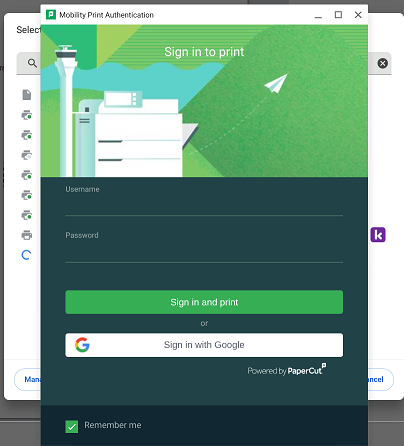
Click the Sign in with Google button. You may be asked by Google to allow the extension. Confirm your FCS email address and password, and then click the Allow and Continue buttons when prompted. Your printers will appear for selection in the dialogue box. Click here for a tutorial.
This prompt can also appear on Windows and Mac devices when printing from the Chrome browser if Print Deploy is not installed or having a problem.
Windows and Mac:
Soon after logging in, Papercut Print Deploy will open a window like this:
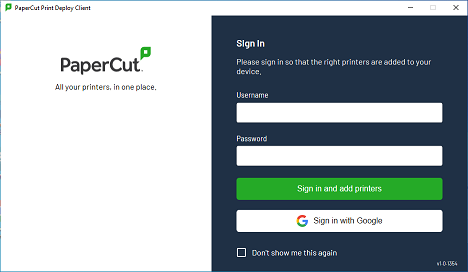
Click the Sign in with Google button. You may be asked by Google to allow the extension. Confirm your FCS email address and password, and then click the Allow and Continue buttons when prompted. Your printers will appear in a dialogue box and will install software “drivers” that allow for advanced printing features. You will see your printers in the list with a status of: Installing. After a few minutes, all printers will be ready to use. Please be patient.
If you have any questions, concerns, or are having trouble with this process, don’t hesitate to reach out to us by submitting a ticket (Hint: you can do so right from this blog!), emailing us at helpdesk@friendscentral.org, or dialing extension 4357 from your desk phone.
For more information about PaperCut, visit the product information page, or download this brochure and learn how we can contribute to a cleaner, greener planet.
Thanks. I noticed that, when I went upstairs to make copies just now, the copier did not recognize my ID and would not let me print without logging in. I tried to log in, but that failed. Is this related to the upgrade or will it be fixed by the upgrade?
Hi Deb,
It’s not related to the upgrade. Did you get a new card? We can check the ID number on the badge and verify it matches what is in PaperCut and update it.